 LESSON 3
OUT OF 3: Home
LESSON 3
OUT OF 3: Home
LESSON 3 OUT OF 3
News Corp Training
Overview
News Corp is running an Extra News! offer on NewsQuake whereby customer would get a QR code with their detauls when they register on the platform through News Corp. each week customer would get every 6th paper free regardless of the day of the week or price of the newspaper every 6th paper will be free. The offer runs from Monday to Sunday, so that customer can get more expensive weekend newspapers for free
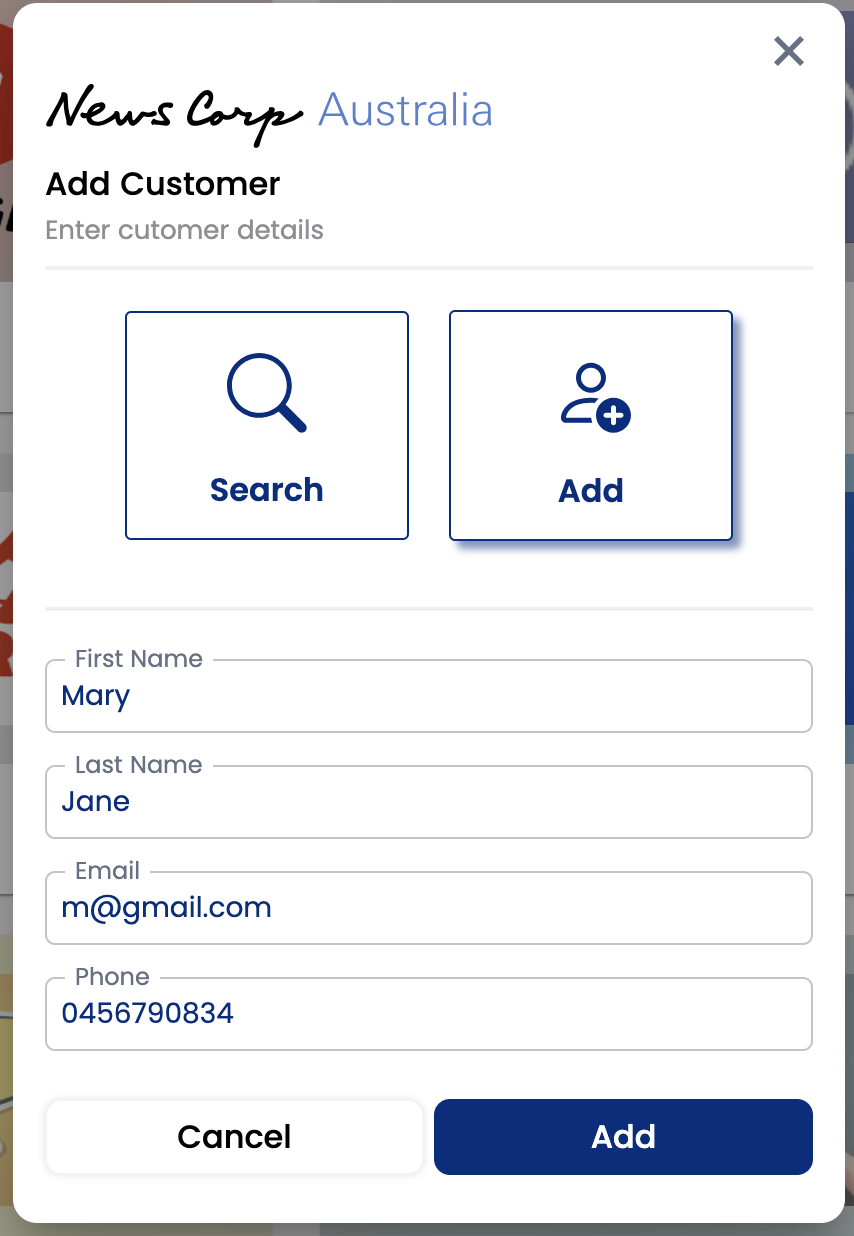
Register the Customer on the platform
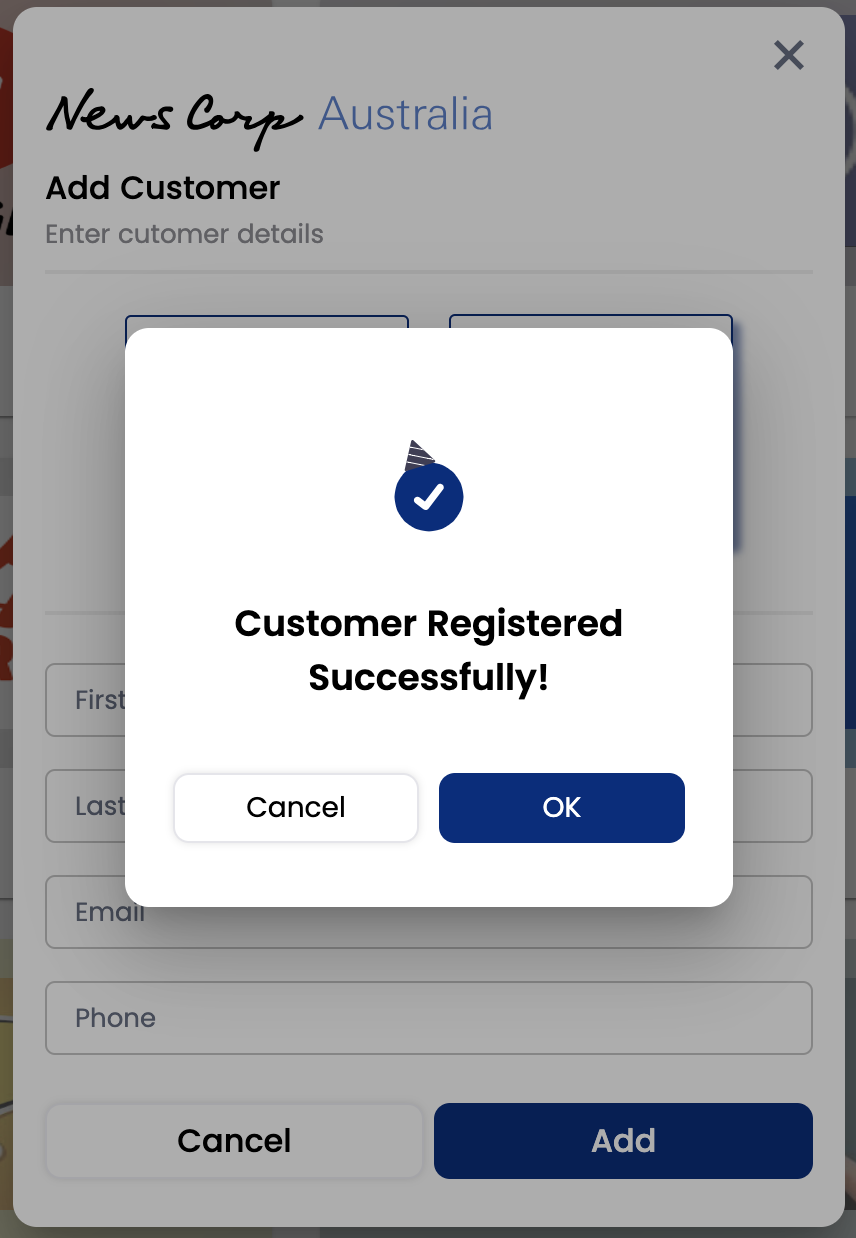
Enter the name, email and phone number of the customer to register them on the platform. When the customer registers first through News Corp they would receive a QR code on their sms/email that tracks free purchases for the week. Check with the customer that they have received this code while they are at the store.
Search for an already registered customer
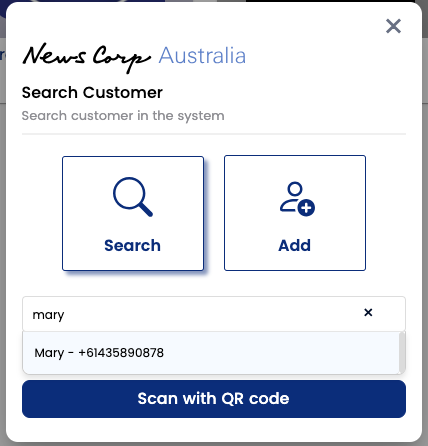
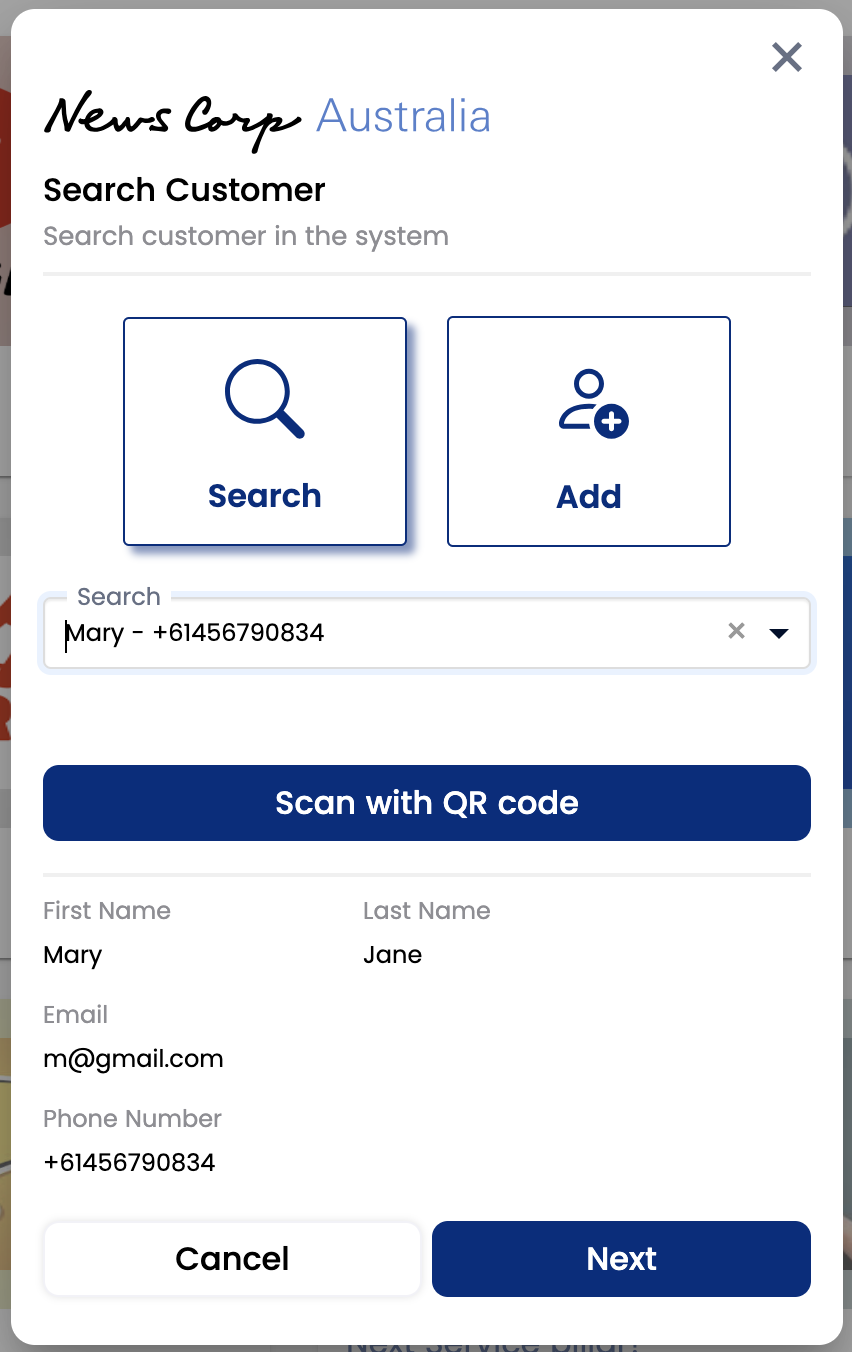
You can search for customer who are already registered for the platform using search button. If you’re searching them first time on News Corp, they will receive a QR code that tracks their news papers purchase for the week on their sms/email. Please check with the customer that they have received the codes.
Via Search Button
You can type customer’s name and confirm the phone number to uniquely identify the customer
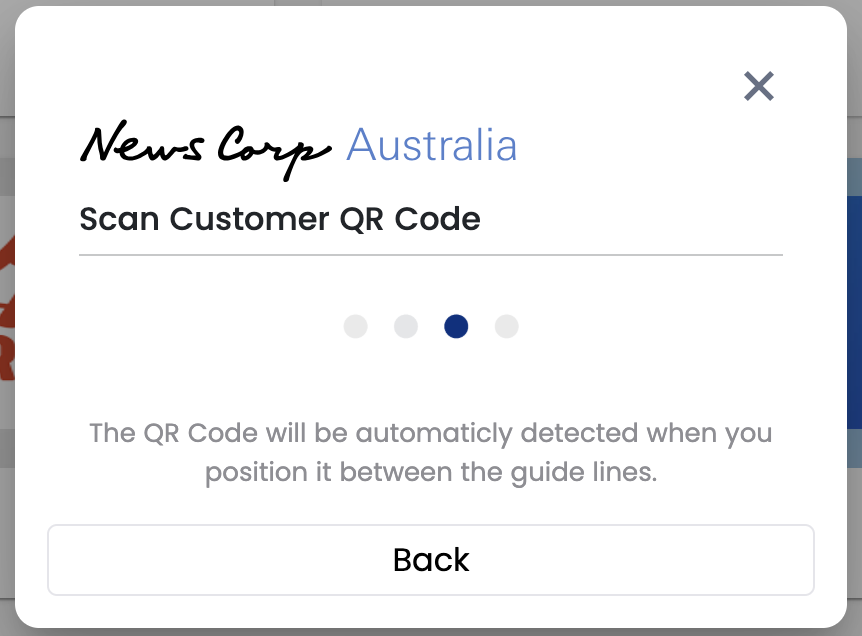
Via QR Code
Registered customers with News Corp would have already received a QR code,. You can search customer details by scanning the QR code with the device.
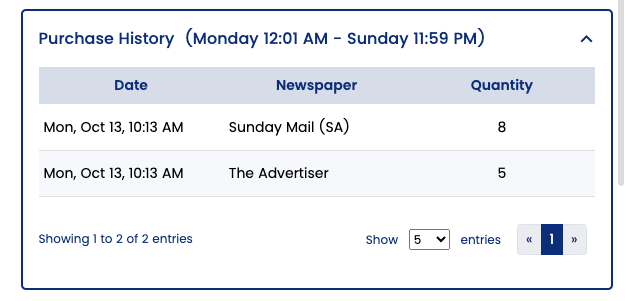
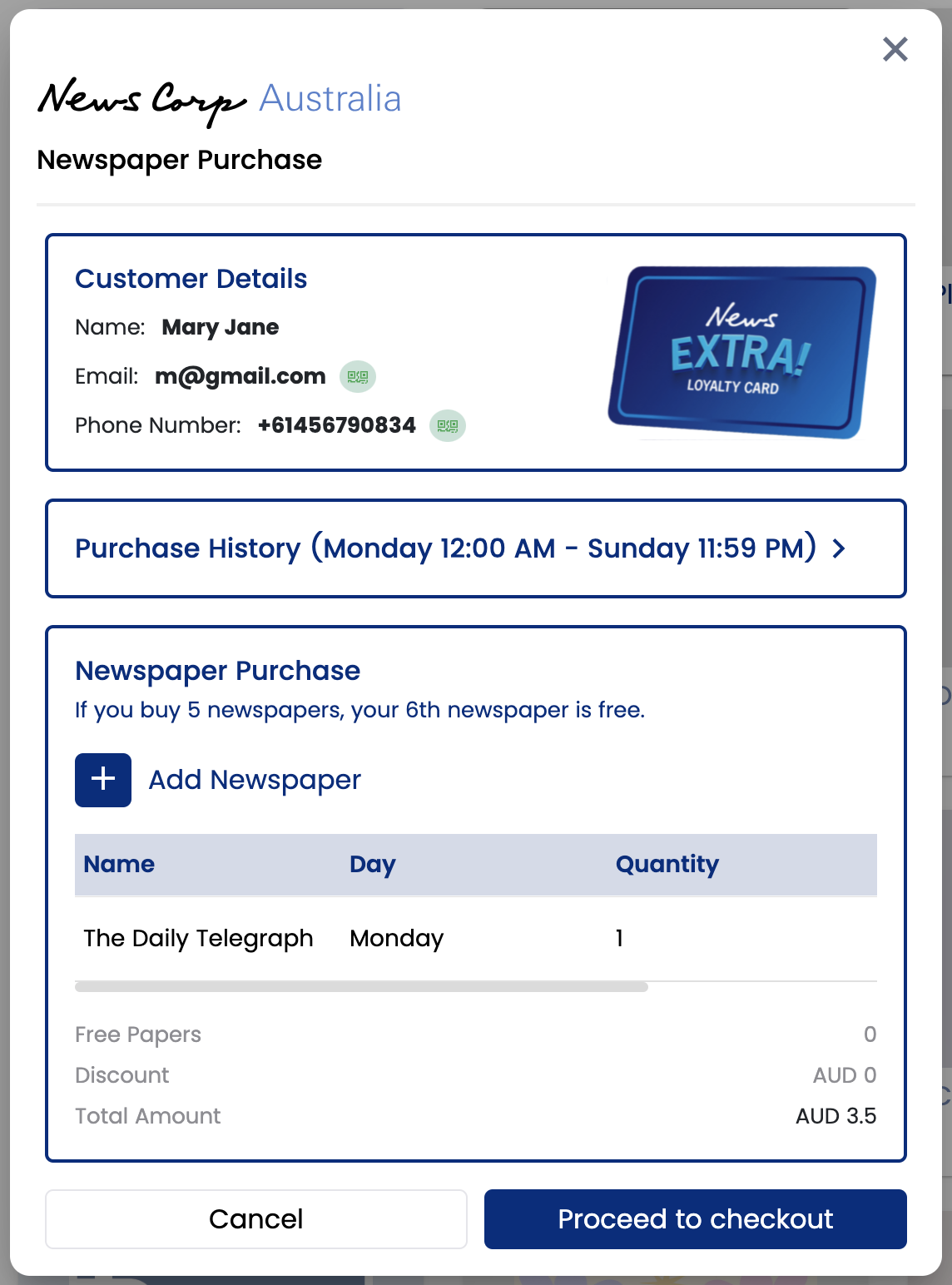
Check customer's purchase history for the week
Expand the purchase history section and you can see how many and what newspaper customer has purchased during the week. Use the page arrows at the bottom right to go previous purchases in case of multiple entries.
Link Physical card
Place News Extra cards you have got from News Corp near to your desk. When the customer asks for the card, click on the 'Link Physical QR Code' on the top, scan the QR code or manually enter the QR code number. Once linked the image of the card will change.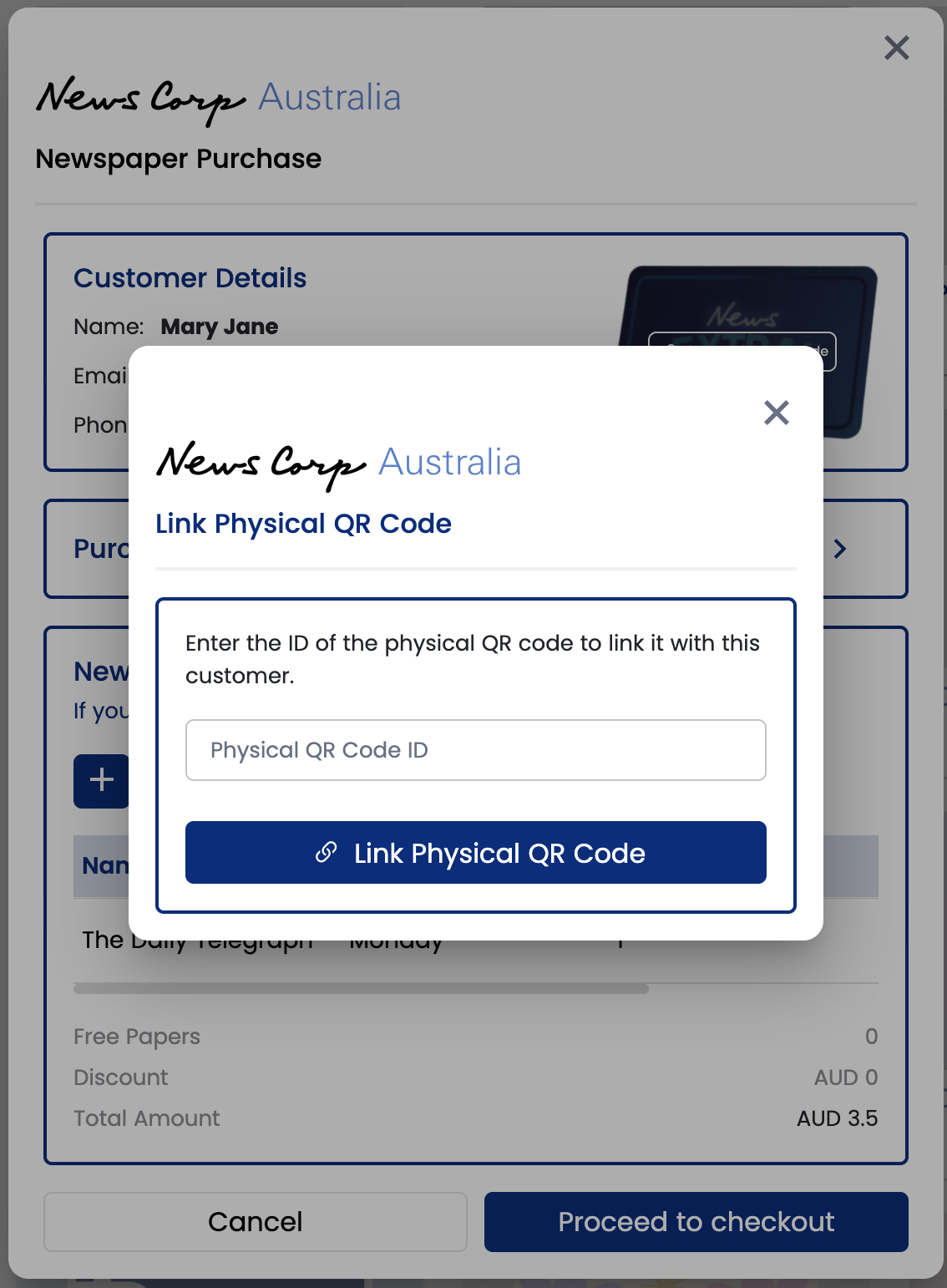
Add Newspapers for purchase
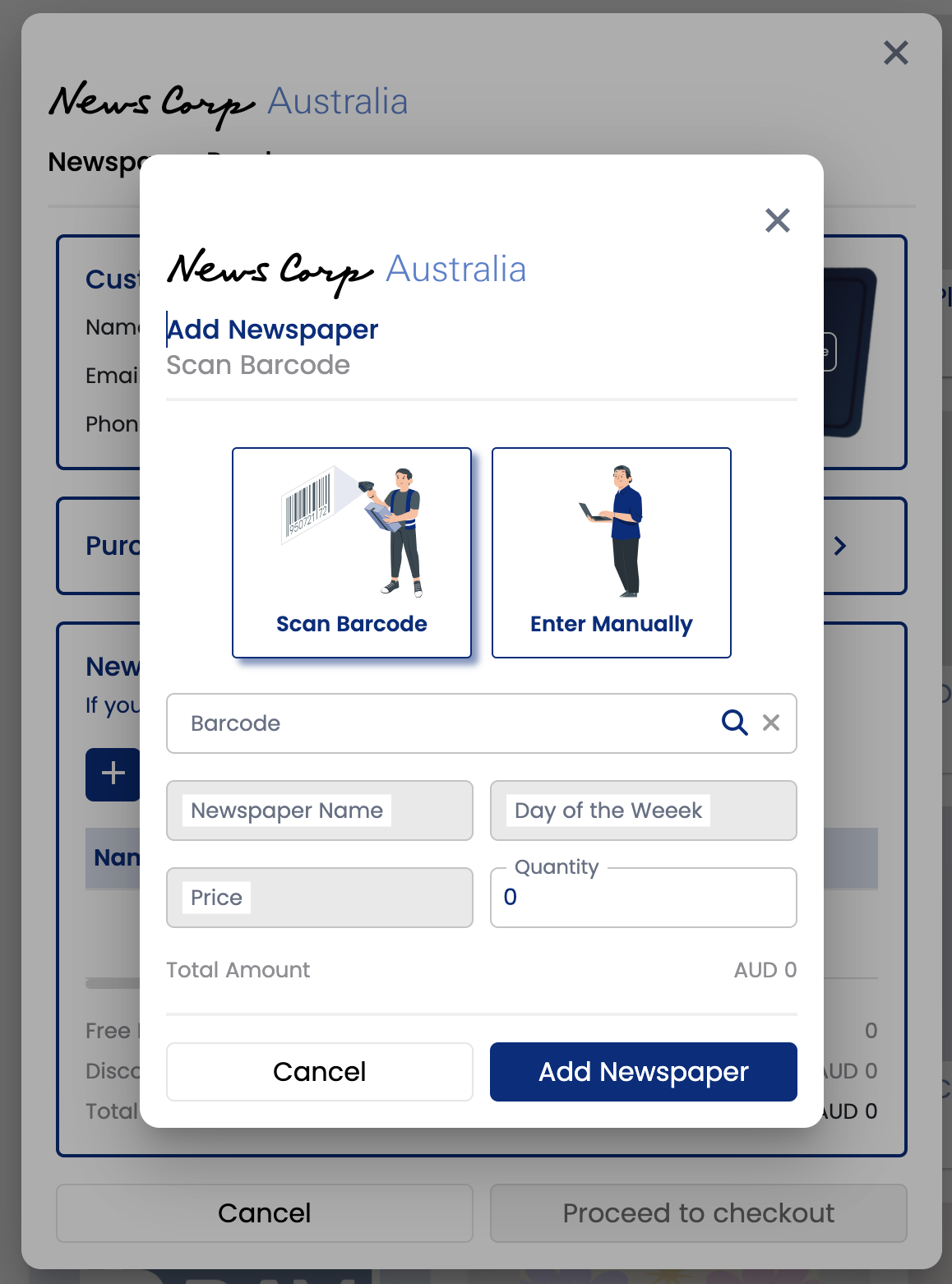
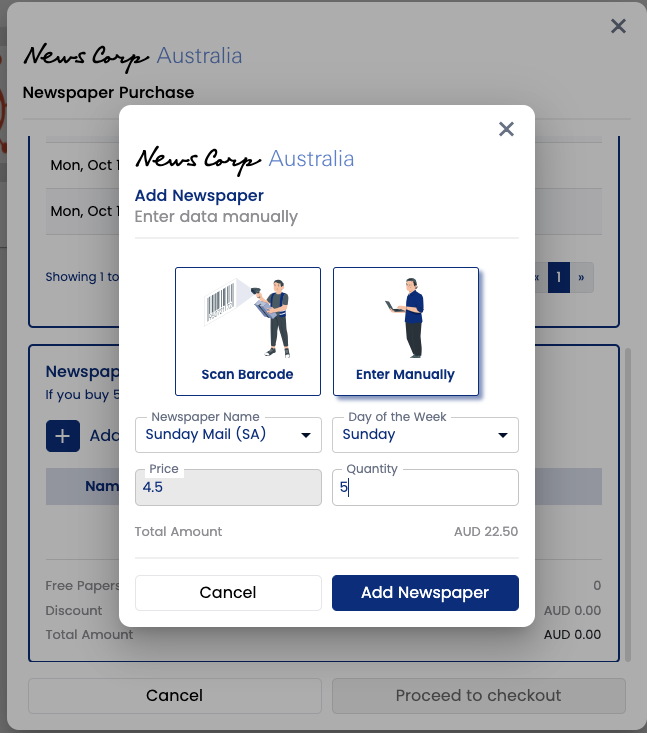
Click the + icon on the Add Newspaper to scan the barcode of the paper or manually enter the details from the drop down.
Scan Barcode
Scan the barcode on the paper, this will auto fill the Newspaper name, day of the week, price. Enter the required quantity and click ‘Add Newspaper’ button
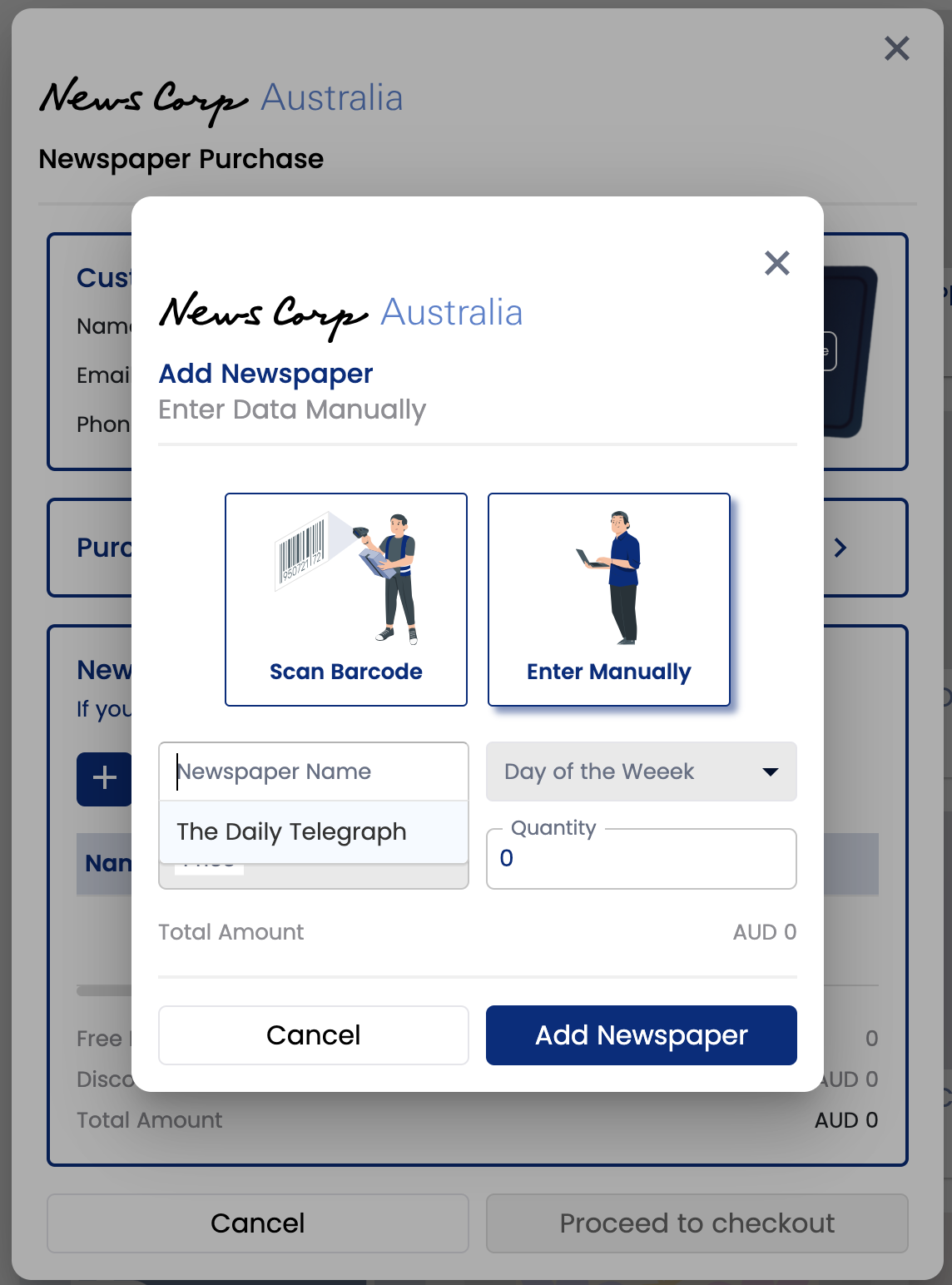
Enter Manually
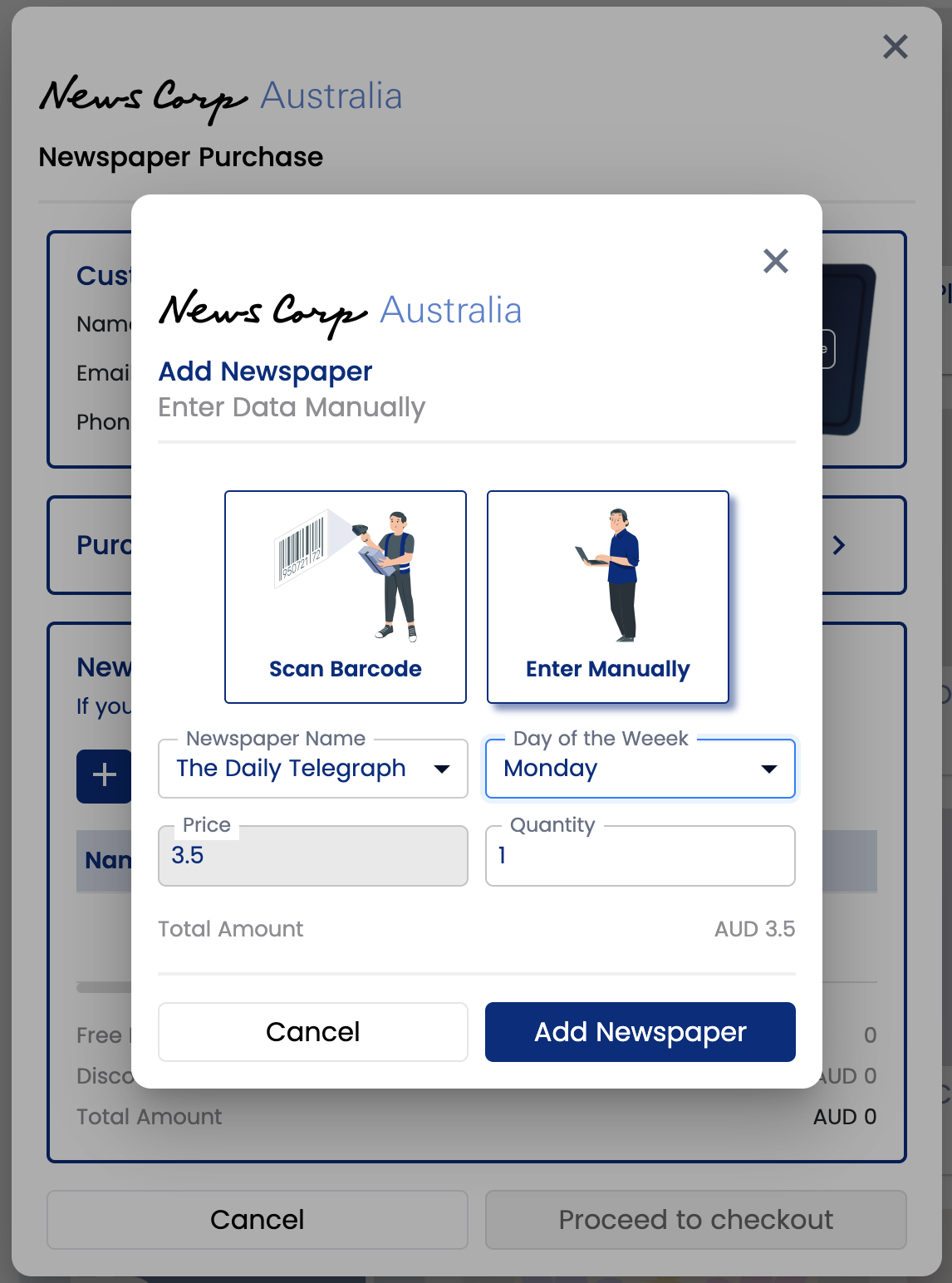
Select the paper from the drop down and other details will be pre-filled. Only the papers sold in your state will appear on the drop down. Enter the required quantity and click on ‘Add Newspaper’ button to proceed.
Free Papers
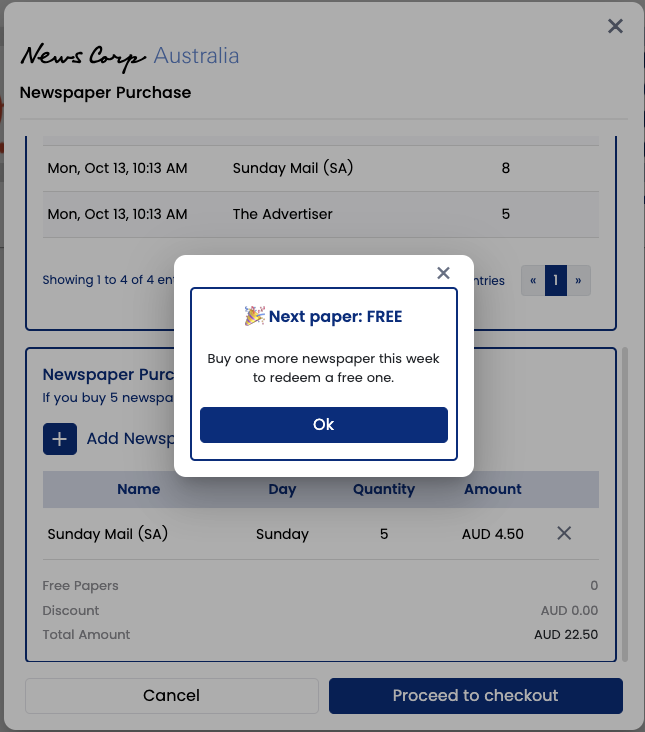
Purchase of 5 papers
Upon purchase of every 5th paper, you will get a prompt suggesting that customer will get next paper free. Read that to your customer so they are encouraged to get the free paper.
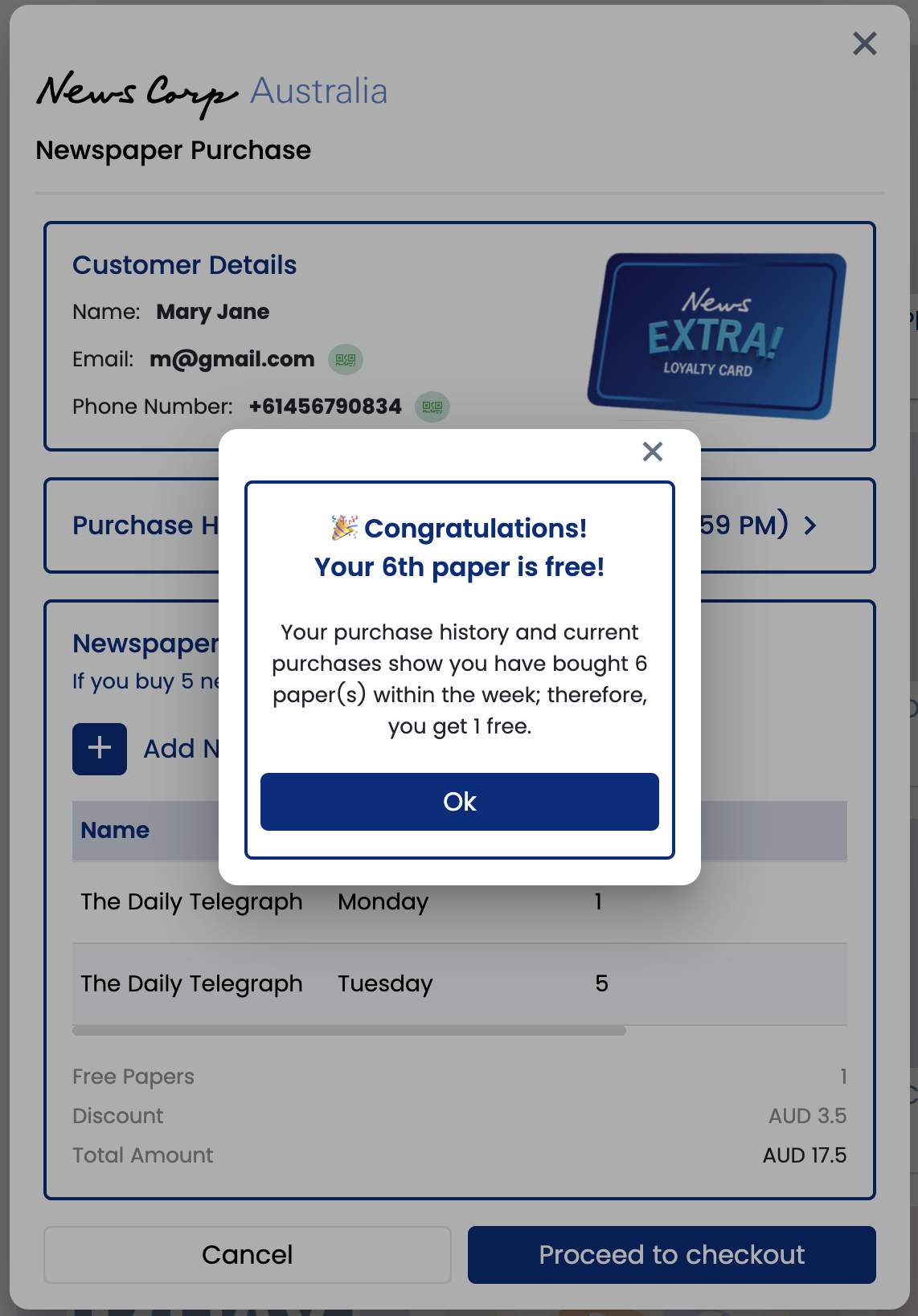
Purchase of the 6th paper
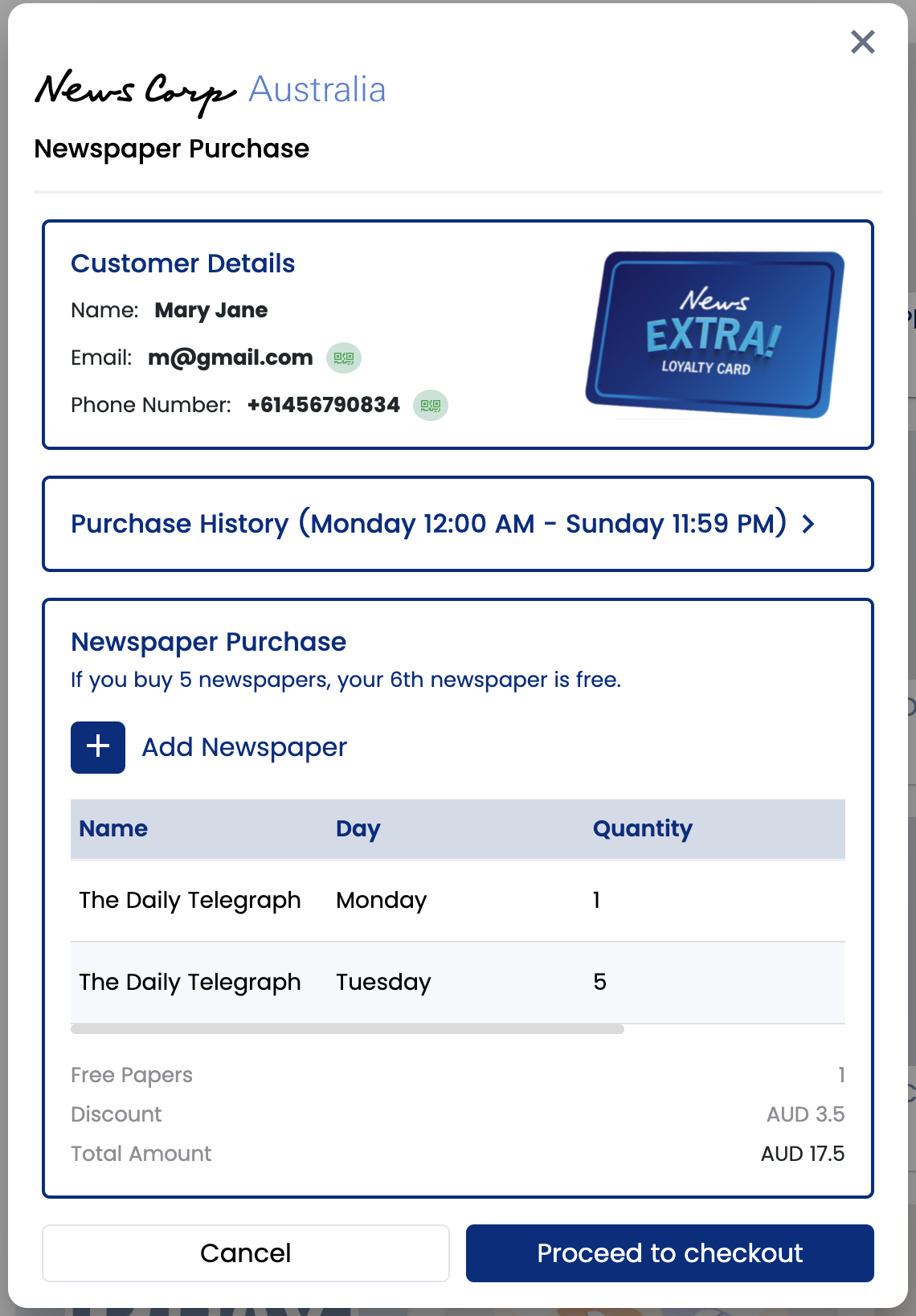
Price of the free 6th paper will be deducted from the total amount that the customer has to pay. Customer can get any number of 6th free paper in the week for example, they can get 6th, 12th, 18th and so on paper free for the week running from Monday to Sunday.
Take Payment
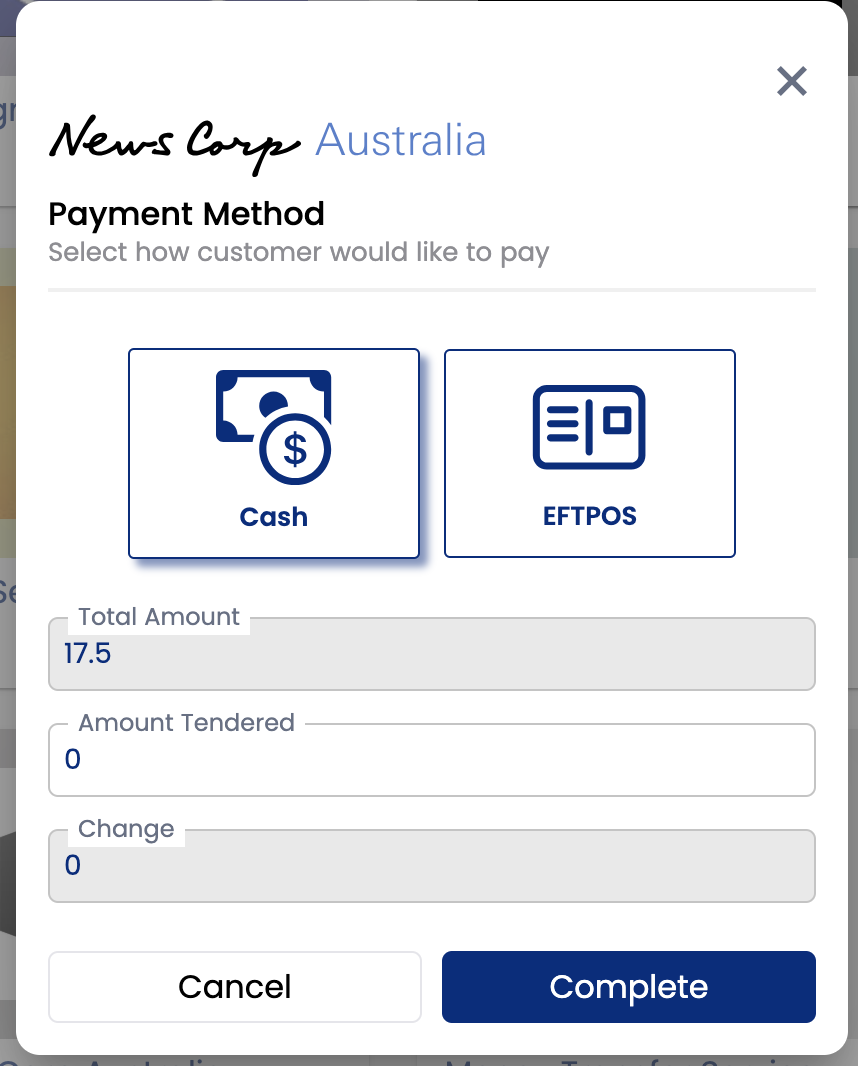
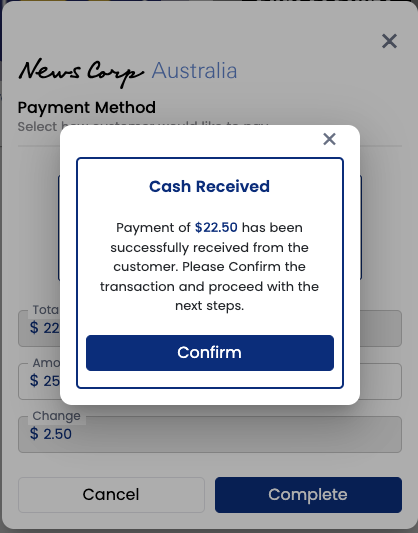
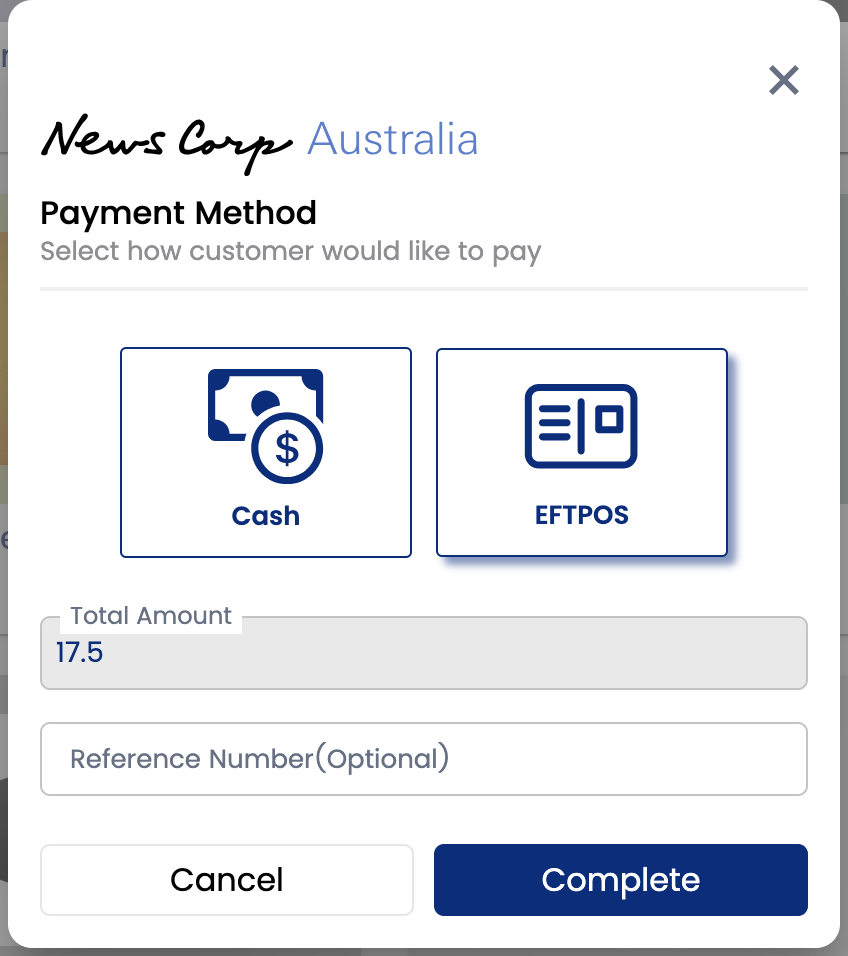
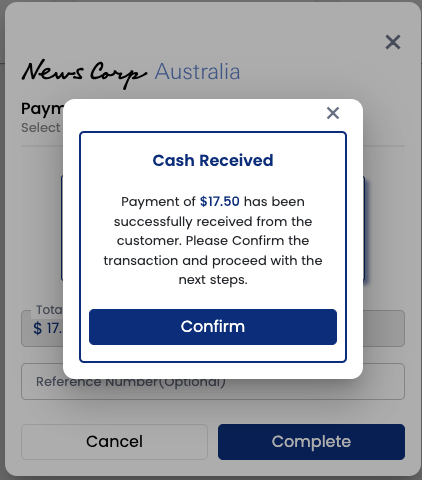
Customers can pay either by cash or card. Payment is not attached to your EFTPOS, hence you have confirm on the platform when the payment has been successful from your EFTPOS machine or cash received so that the purchase can be completed on the platform.
Via Cash
Via EFTPOS
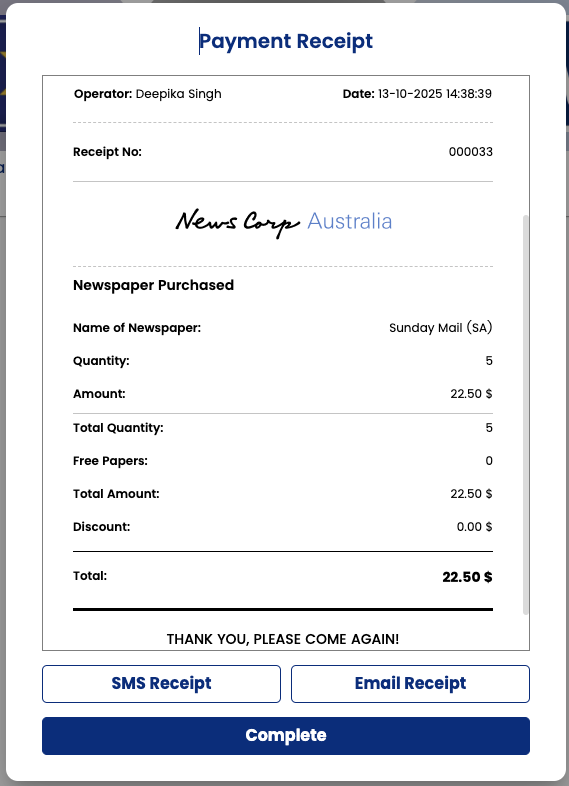
Payment Receipt
A receipt with the purchase details – number of newspapers and free papers will be generated after the purchase is completed. Customer can get the receipt either on SMS or email or both. Click on the respective button as per customers’ preference.